![Kara Connect - Logo A - RGB - White.png]](https://support.karaconnect.com/hs-fs/hubfs/Kara%20Connect%20-%20Logo%20A%20-%20RGB%20-%20White.png?height=40&name=Kara%20Connect%20-%20Logo%20A%20-%20RGB%20-%20White.png)
1. The Quick Check
Before diving into settings, try these three instant fixes:
-
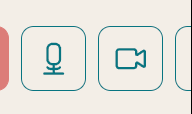
Check the buttons: Ensure your camera and microphone icons are on (not crossed out) in the session window.
-
Close other apps: Ensure apps like Zoom, Teams, or FaceTime are fully closed, as they can "steal" your camera access.
-
Refresh your page: Sometimes a simple browser refresh fixes the connection.
2. Browser Permissions
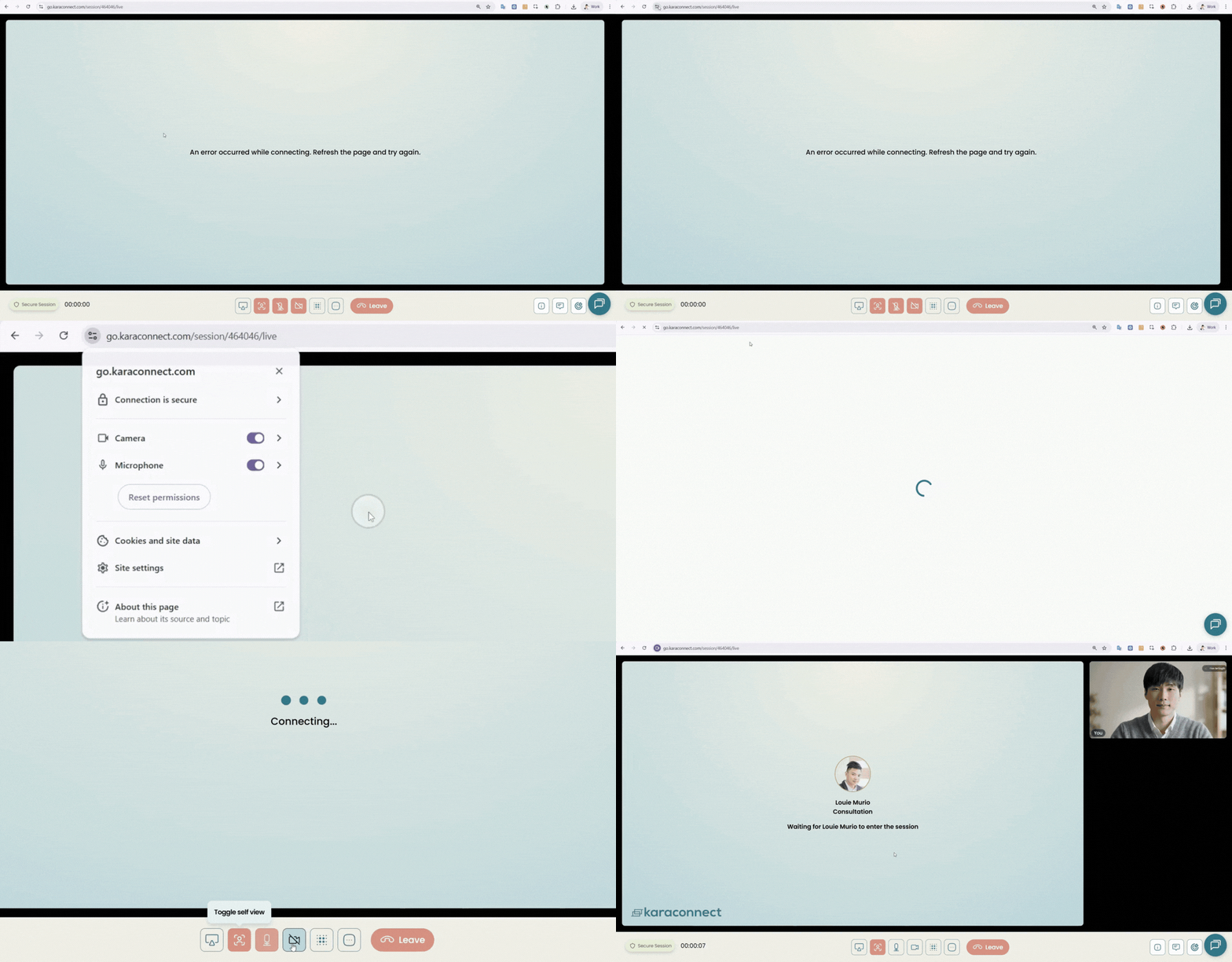
Your browser needs your permission to use your hardware. Look at the top of your screen in the address bar:
-
Click the Lock (🔒) or Camera (📹) icon next to the URL.
-
Ensure Camera and Microphone are set to "Allow."
-
Tip: We highly recommend using Google Chrome for the most stable experience.
3. System Settings (Mac & Windows)
If your browser has permission but the camera still isn't working, your computer’s operating system might be blocking it.
For Mac Users (MacOS 10.14+):
-
Go to the Apple Menu > System Preferences > Security & Privacy.
-
Select Privacy at the top, then click Camera in the left sidebar.
-
Ensure the box next to your browser (e.g., Chrome) is checked.
-
Repeat these steps for the Microphone.
-
Restart your browser for changes to take effect.
For Windows Users:
-
Go to Settings > Privacy > Camera.
-
Ensure "Allow apps to access your camera" is turned On.
-
Scroll down to ensure your browser is allowed access.
-
Repeat for Microphone settings.
4. Advanced Troubleshooting
If you are still having trouble:
-
Check your Session ID: Make sure the numbers at the end of your URL match your professional’s URL. If they don't, you are in different virtual rooms.
-
Test your hardware: Use a [Online Mic & Cam Test] to see if the issue is with your device itself.
-
Check your Network: If you are on a corporate network or behind a firewall, these inputs may be blocked. Try switching to a private network or contact your IT team.
-
Incognito Mode: Try opening the session in an Incognito/Private window to see if a browser extension is interfering.
Still not working?
We’re here to help you. If these steps didn't resolve the issue:
-
Chat with us: Click the chat icon in the bottom right corner of your screen.
-
Send a report: Fill out our [Support Form] and our team will get back to you shortly.