![Kara Connect - Logo A - RGB - White.png]](https://support.karaconnect.com/hs-fs/hubfs/Kara%20Connect%20-%20Logo%20A%20-%20RGB%20-%20White.png?height=40&name=Kara%20Connect%20-%20Logo%20A%20-%20RGB%20-%20White.png)
Welcome
As a line manager on Kara Connect, you can support your team's wellbeing and see how your team is doing, without ever seeing anyone's private activity.
Kara Connect gives your employees confidential access to wellbeing support through your company's Wellbeing Hub and any pathways your company has added, such as Neurodiversity or Leadership. Your HR admin set up your account and chose what you can do in it. This guide explains what you'll see, what each part does, and where the privacy lines sit.
Getting set up
You'll get a sign-up email from Kara Connect once your HR admin invites you. Setting up takes a few minutes.
- Open the sign-up email and follow the link.
- Create your account with your work email.
- Log in to the manager dashboard. You'll see the sections your HR admin has given you access to.
Your invite doesn't expire, so you can accept it whenever you're ready. If you can't find the email, ask your HR admin to resend it.
Your team
You manage one team, and everything you see in Kara Connect is limited to that team.
Your HR admin creates teams (for example Marketing, Retail South or Customer Care) and assigns you to one when they invite you. Your reports, any Sick Leave Bridge cases and your visibility into your team are all bounded by that team.
HR admins work differently. They see the whole company, across all teams. If you think you've been assigned to the wrong team, ask your HR admin to change it.
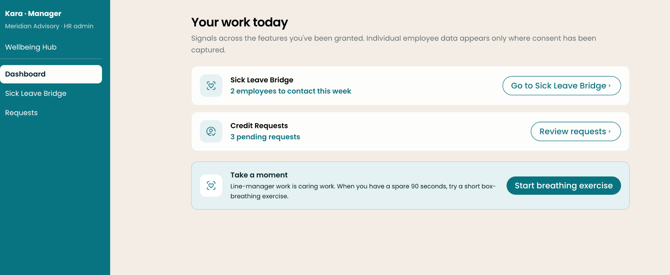
Your permissions
Your HR admin picks your permissions one by one, so you may have some of these and not others.
|
Permission |
What it lets you do |
|---|---|
|
Reports |
See wellbeing reports for your team. Data is aggregated and anonymised. |
|
Signposting |
Send a wellbeing support email to someone on your team, with a conversation guide to help. Limited to two sends per employee per quarter. |
|
Sick Leave Bridge |
See your team's Bridge cases. Bridge supports employees on long-term sick leave with an Occupational Therapist and a short series of supportive emails. |
|
Flag cases (part of Sick Leave Bridge) |
Mark an employee as on sick leave so Bridge support starts. |
|
Critical Incident |
Use critical incident response for your team. |
|
Credit Requests |
Review requests for extra session credits for employees. |
|
Access Management |
See the Access section and invite people to invite-only pathways. See the next section. |
If you expect to see something and can't, ask your HR admin. They can change your permissions at any time, and the change shows the next time you load the page.
Inviting people to pathways
With Access Management, you can invite anyone in your company to an invite-only pathway, not just people on your team. Without it, the Access section doesn't appear in your sidebar at all.
Access has three tabs:
- Products shows each Kara product your company has and how people join it. A product can be Open (anyone with a company email), Approved list (only people on a list) or Invite only.
- Managers shows who manages access and reports.
- Teams shows your company's teams.
Everything you see there is scoped to your team.
To invite someone to an invite-only pathway, go to Access, open the Products tab, find the pathway and click Invite someone. Your invites appear as your invites, each with a status: Invited (email sent), Accepted (they've signed up) or Joined. Invites don't expire. Use Resend if someone hasn't accepted.
Pending requests. If your company's Wellbeing Hub uses an approved list, people who aren't on the list can ask to join. If they pick your team on the request form, their request shows in your view as well as your HR admin's.
You can't change how a product is joined (for example from Open to Invite only). Your HR admin arranges that with Kara Connect.
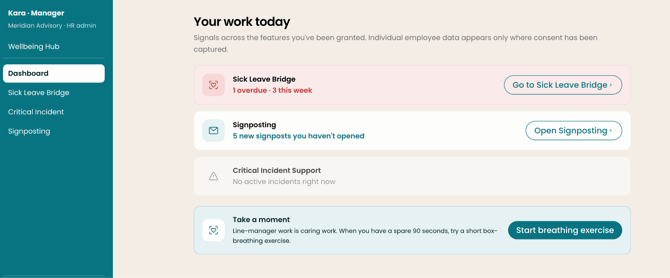
Privacy: what you will and won't see
You'll see team-level trends and the status of your own invites, never what an individual does with their support. This is built into Kara Connect and isn't a setting anyone can turn on.
You will see:
- Aggregated, anonymised wellbeing reports for your team
- How many signposts have been sent across your team over time
- Whether people you invited to a pathway have accepted
You will never see:
- Whether someone opened a signposting email, visited the hub or booked a session
- Whether someone you invited to a pathway booked, was assessed or was referred
- The full list of people who have joined your company's hub
This separation is what makes Kara Connect a genuine offer of support rather than a form of tracking. When you talk to your team about it, frame it as sharing a useful resource, not as flagging a problem.
Common questions
I can't see the Access section. Why? Access is only shown to line managers with the Access Management permission. Ask your HR admin to add it.
Can I invite people outside my team to a pathway? Yes. You can invite anyone with a company email to an invite-only pathway. Your reports still only cover your own team.
Can I manage more than one team? No. Each line manager is assigned to one team. If your situation is different, raise it with your HR admin.
What's the difference between me and an HR admin? An HR admin sees the whole company. You see only your team. You can both hold the same permissions, but yours apply to your team only.
Can I tell if someone used the support I signposted? No. You only see team-level totals, never individual activity.
What happens to my invites if I leave the role? Nothing changes for the people you invited. Anyone who accepted keeps their access, and pending invites stay valid.
Does Bridge replace my check-ins with someone on sick leave? No. Bridge is a support layer. Once an employee leaves the Bridge sequence, it's your responsibility to keep in contact as appropriate.
Getting help
For anything about your account, team or permissions, start with your HR admin. They can change your access, reassign your team and resend invites. For questions about how Kara Connect works, your HR admin can bring in your Kara Connect Customer Success Manager.