![Kara Connect - Logo A - RGB - White.png]](https://support.karaconnect.com/hs-fs/hubfs/Kara%20Connect%20-%20Logo%20A%20-%20RGB%20-%20White.png?height=40&name=Kara%20Connect%20-%20Logo%20A%20-%20RGB%20-%20White.png)
If you're seeing a client and you think a different professional in the same hub would be a better fit — a specialist counsellor, a career coach, a physiotherapist — you can refer them to that colleague from inside the product.
The referral is recorded, the client's contact details are handed over safely, and the person receiving the referral picks up from there.
This article covers both sides of the flow: you as the referring professional (who sends the referral) and you as the receiving professional (who takes on the client).
Before you refer
A referral is part of the therapeutic process, not just an administrative step. Discuss it with your client in session first: who you are recommending, why this practitioner is well suited to their current needs, and what the transition might look like. Give space for questions, hesitation or feelings about ending your work together, and acknowledge the relationship you have built. Submit the referral only once your client has given informed consent and feels ready for the handover.
What the referral shares
The receiving practitioner gets your client’s name, phone number and your referral note. Session content and clinical notes remain securely in the system and are not transferred. Use your note to support continuity of care: the reason for the referral, the client’s presenting needs and anything the new practitioner should know to build a safe working relationship from the start. Include only information your client has agreed to share and that is relevant to their next step in care.
**IMPORTANT**
You can only refer to a professional on the same hub as your client. Referrals between hubs are not part of this version.
Making a referral
Open the client's profile in the Professional app. There's a Refer client action on the profile page. Selecting it opens the referral composer.
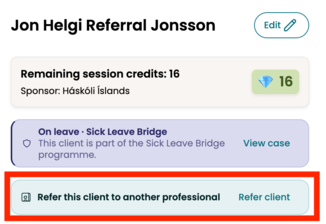
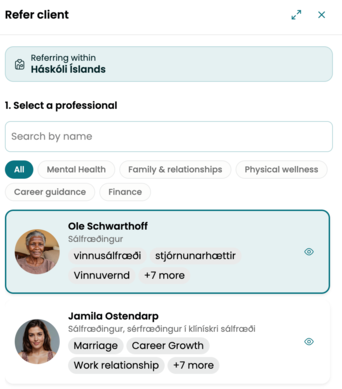
The composer has two sections.
1. Pick a professional. You see the same-hub professionals with at least one bookable slot in the next 30 days. Professionals with no upcoming availability don't appear. Each card shows the professional's name, category (Mental Health, Family, Physical, Career, or Finance), specialty tags, and their next available date.
Selecting Quick look on any card opens their full profile: bio, credentials, how they work, specialties, languages, modalities and availability — the same information a client would see if they were choosing a professional themselves.
2. Add a referral note (required). Write a clinical handover note to help the receiving professional continue your client’s care safely and effectively. Include the reason for the referral, the client’s presenting concerns, relevant clinical history, any risk factors, the work you have done together so far and the client’s current goals. Keep it concise and focused on what the new professional needs to begin well. The note is shared securely within the Kara Connect workstation.
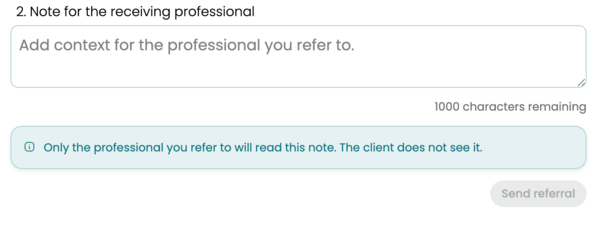
When done writing the note, click the Send referral button to submit. The referral is written to the system immediately.
What happens if there's no available professional
If no same-hub professional has a bookable slot in the next 30 days, the composer shows an empty state with a note to contact your hub admin.
What happens after you submit
- The referral is created in the system with state Referred, awaiting pickup.
- The receiving professional is notified by email. They get a single email from Kara Connect with the subject "{your first name} has referred {client first name} to you — please schedule the first session". The email tells them they need to reach out to schedule, and that the client's phone number is on the referral detail view. The email itself carries only the two professional’s names, the client's first name, and a link — no note, no reason, no phone number.
- You can see the outgoing referral on your side, in the outbound referrals list on the client's profile, with the state Referred, awaiting pickup.
- **The client is notified by email once the second professional has accepted the referral.**
Receiving a referral
When another professional refers a client to you, you see it in two places.
By email. The subject line names the referring professional and the client. Selecting View referral opens the referral detail view directly.
In the app. Open your Referrals tab on any Client page — it sits alongside Clients, Requests, Invites and Deactivated.
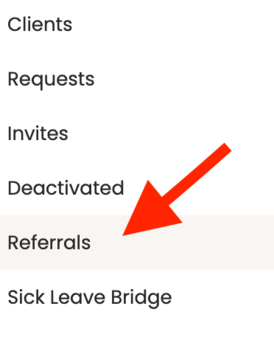
New referrals appear at the top with the client's name, the referring professional's name, and the date the referral was submitted.
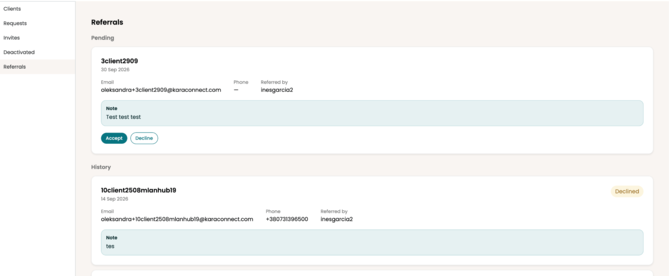
Contacting your client and beginning care
Once the client has accepted the referral, the professional will be able to see the client in the referrals list. From there, the professional can either contact the client or create a treatment and session for them.
The client will receive an email about the session with a link that will take him to the dashboard where he will need to fill in the requirements.
What the client experiences
Once the referral happens, the following process takes place:
- They will receive an email letting them know that they have been referred from one professional to another.
- When they click on the link in that email, they will go to the product where they can accept the Terms & Conditions of the new professional and accept the referral.
- They can then book with the new professional.
What you see and what you don't
As the referring professional, you see: your outgoing referrals on the client profile, each labelled with state (Referred, awaiting pickup or Active). Once the receiving professional creates the treatment, the provenance label appears on your side too.
As the receiving professional, you see: the referrals list on your Client page, and the referral detail view with client name, referring professional, reason, note, and client contact information.
What neither of you sees: the other professional's clinical work with the client. The referral moves the client and the short note; it doesn't move sessions, notes, treatment history, questionnaires, or any clinical record.
When you close out. If you were the referring professional and you're done, you can close your treatment manually with the closure reason "Referred elsewhere".
Questions
Can I refer to a professional in a different hub? No. Cross-hub referrals aren't in this version. You can only refer to professionals on the same hub as your client.
What if the professional I want isn't in the list? The list only shows professionals with at least one bookable slot in the next 30 days. If a specific professional isn't showing, they don't have upcoming availability. Contact Kara's Chief Clinical Officer if this happens often enough to matter.
Can I withdraw a referral once submitted? Not in this version. Talk to the receiving professional directly and they can leave the referral unpicked-up or turn to the Chief Clinical Officer for clinical guidance if needed.
Does the referring professional see when I take the client into new care? Yes — the referral state on their side flips from Referred, awaiting pickup to Active as soon as you create the treatment, and the provenance label is written on both sides of the client record.