![Kara Connect - Logo A - RGB - White.png]](https://support.karaconnect.com/hs-fs/hubfs/Kara%20Connect%20-%20Logo%20A%20-%20RGB%20-%20White.png?height=40&name=Kara%20Connect%20-%20Logo%20A%20-%20RGB%20-%20White.png)
The Access section in your manager dashboard brings everything about "who can use what, and who manages it" into one place. It replaces the two separate pages that used to live under Employees whitelisting and Manager access. If you line-manage people as well as admin the account, you'll see the same section — but scoped to what you're entitled to see.
Everything sits under one nav item in the sidebar: Access. Opening it lands you on Products, the first of three tabs: Products, Managers, Teams. Each tab answers one question. The rest of this guide walks through each tab, then covers line managers and the common things people ask.
The Products tab — who can join each thing you've bought
One row per Kara product your company has access to: your Wellbeing Hub, any pathways you've added (Neurodiversity, Leadership), and anything else included in your agreement. Each row shows a short sentence explaining how people join that product right now, and — where it makes sense — a list of who has joined or been invited.
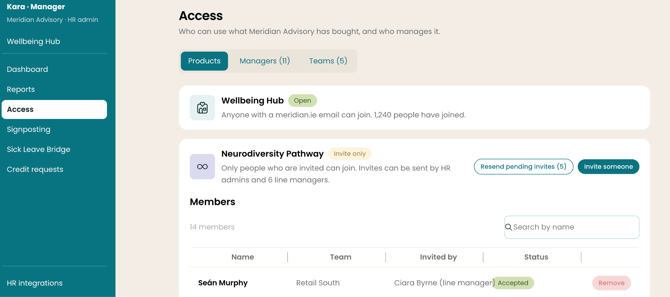
The sentence tells you the mode. For example:
- "Anyone with a meridian.ie email can join. 1,240 people have joined." — this product is Open.
- "Only people who are invited can join. Invites can be sent by HR admins and 6 line managers." — this product is Invite only.
- "Only people on your approved list can create an account. 248 people are on the list · 231 have joined · 3 requests to join." — this product is on the Approved list.
You can read the mode from the sentence; the chip beside it (Open / Approved list / Invite only) is just a shorthand of the same thing.
Changing a mode goes through your CSM. The mode on each product is read-only in your dashboard. If leadership has decided to flip the Neurodiversity Pathway from Open to Invite only, email your Kara CSM and we'll change it with you. This is deliberate — you're never one accidental click away from locking out your whole company on a Friday afternoon.
Products on Open mode don't show a member list. We don't keep a roster of everyone eligible for an open product, only of people who have joined. Listing who's joined would be individual sign-up visibility, which we only ever offer on Approved list hubs. Open products show the joined count in the sentence and nothing else.
Approved list — handling pending requests. When your Wellbeing Hub is on the Approved list, people who try to sign up but aren't on the list can submit a short "request to join" form. They enter their work email, optionally pick their team, and optionally add a note. Once they've verified their email address, their request appears as a yellow row under the Wellbeing Hub product with two inline icons: a green check (Approve) and a red cross (Decline).
Approve adds them to your access list and emails them a sign-up link. Decline removes the row with no further contact — they aren't told. If you're approving someone time-limited (a contractor, a secondee), tick "Set an expiry date" on the Approve action, pick the date, and confirm — the entry is added with an expiry, and they're removed from the list automatically on the day it reaches.
Approved list — adding people in bulk. Use the Bulk list upload button in the Wellbeing Hub row header. Upload a CSV of emails and names; everyone on it is added to the approved list immediately and can sign up right away.
Invite only — managing invites. For pathways on Invite only, each invited person shows a status: Invited (we've sent the email, they haven't accepted yet), Accepted (they've signed up), or Joined (they were on an existing whitelist and signed themselves up). Status stops there. Whether they booked, were assessed or referred never appears here — not to you, not to the line manager who invited them. That separation is deliberate.
Invites don't expire. If someone was invited weeks ago and still hasn't accepted, use Resend pending invites next to Invite someone at the top of the row — it re-sends to everyone whose status is still Invited. For a single invite, use Resend on that row.
Products you don't have yet. At the bottom of the Products tab you'll see muted cards for things that aren't part of your agreement, with an Inquire about pathway link. Clicking it opens a conversation with us — nothing changes on your account.
The Managers tab — who manages access and reports
This is where you invite line managers and other admins, and where you control what each person can see.
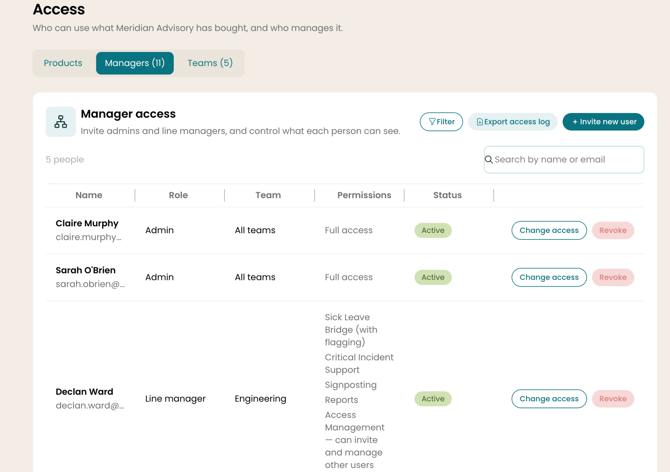
You see one table with these columns: Name (name and email), Role (Admin or Line manager), Team (a specific team for line managers; "All teams" for admins), Permissions (the capabilities they hold), Status (Active / Pending), and the row actions on the right.
Filtering. The Team and Permissions column headers each have a funnel icon that opens a filter popover — handy when you have 20+ managers and want to see "everyone with Reports access" or "everyone in Retail South".
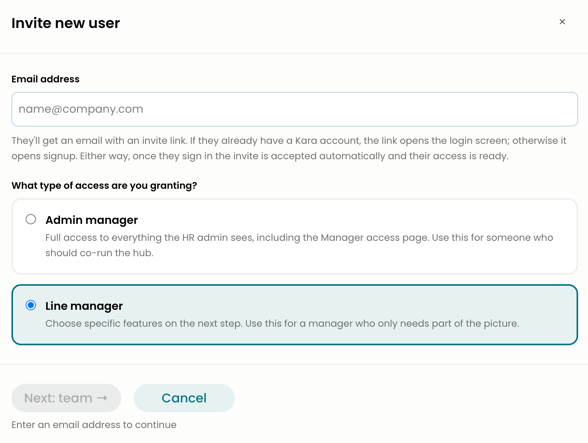
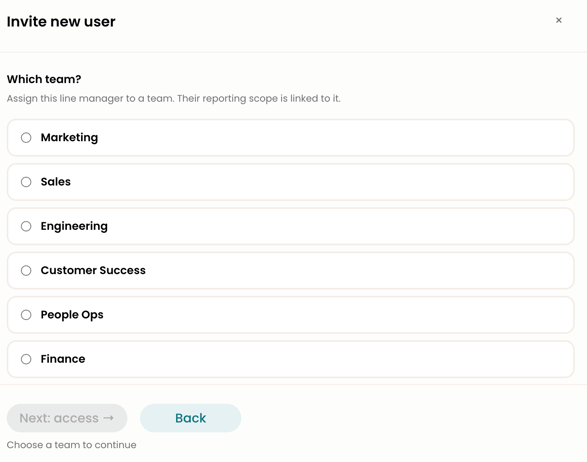
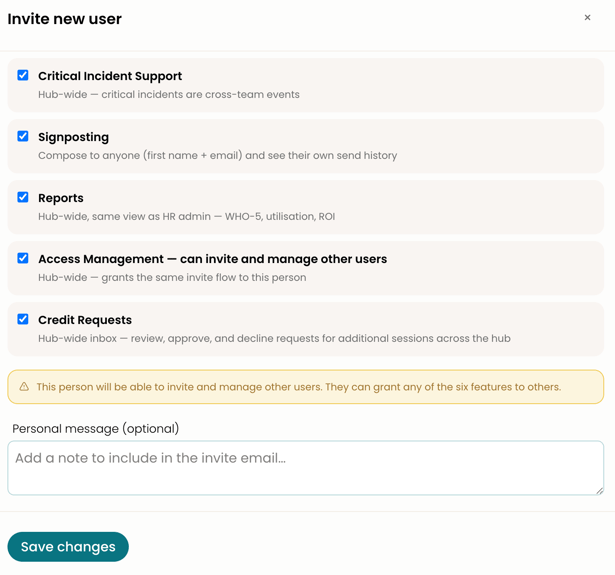
Inviting someone. Click Invite new user at the top of the table. The modal walks you through four short steps:
- Type — Admin or Line manager. Admins see everything about the whole company; line managers see only their team.
- Email — the work email of the person you're inviting. They'll receive a sign-up email.
- Team — only shown for line managers. Pick which team they'll manage. If no teams exist yet, this step directs you to the Teams tab first.
- Permissions — tick the specific capabilities they'll have. Options include Sick Leave Bridge (with a nested "flag cases" sub-permission), Critical Incident response, Signposting, Reports, Access Management, and Credit Requests. Pick as many as apply.
Hit Send invite and the row appears with status Pending until they accept.
Changing someone's access. Click Change access on any row to re-open the permissions step and tick or untick capabilities. Save and the row updates immediately — their next page load sees the new permissions.
Revoking a line manager or admin. Click the trash-can icon on the row. Confirm, and the person loses access to the manager dashboard immediately. Their account itself isn't deleted; if you reinvite them later, they can rejoin without creating a new login.
Access Management is the key permission for pathways. If you want a line manager to be able to invite people to an invite-only pathway, give them Access Management. That one permission lets them see the Access section at all, see the pending block on your Approved list, and send invites on invite-only products. Without it, they don't see the Access nav item in the sidebar.
The Teams tab — the org structure everything else leans on
Teams are the groups you organise your company into for the purpose of line-manager reporting and routing. Marketing, Retail South, Customer Care — whatever shape makes sense for you.
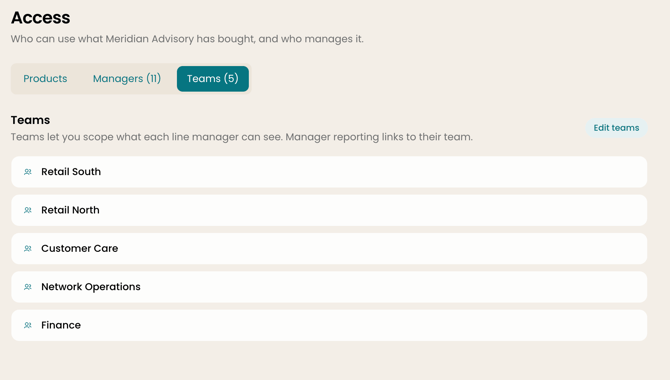
Why teams matter. Line managers are always scoped to one team. Their reports on wellbeing, their Sick Leave Bridge cases, their visibility into who's doing what — all of that is bounded by the team they manage. If a team isn't defined, you can't invite a line manager for it.
Creating teams. On the Teams tab, click Create teams. A modal opens with a chip-style input: type a name, press Enter, type the next one. You can add as many as you need in one go. Click Save when you're done.
Editing teams. Click Edit teams. Existing teams render as removable chips. Edit a name by clicking it, remove one by clicking the × on its chip, and add new ones using the same type-and-Enter pattern. Save when you're done.
The zero-teams state. If you've just created your account and haven't defined any teams yet, the Teams tab shows a friendly card prompting you to create one. The same card appears on the Managers tab if you try to invite a line manager before any teams exist — Kara won't let you invite someone to lead a team that doesn't exist. Create the team first, then invite.
Removing a team that has a line manager assigned. You can't. Reassign the line manager to another team first (from the Managers tab) or revoke their access, then remove the team.
What line managers see
A line manager who holds the Access Management permission sees the exact same three-tab Access section an HR admin sees — Products, Managers, Teams — scoped to their team.
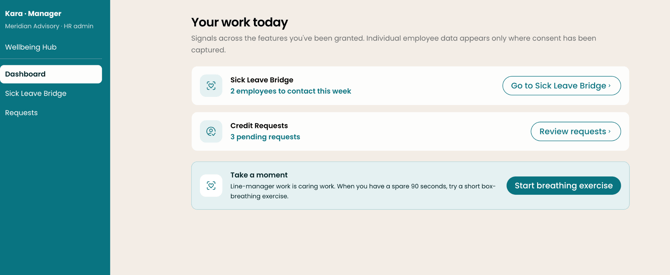
A line manager who doesn't hold Access Management doesn't see the Access section at all. No nav item, no partial view, nothing. They can still see their reports, their Sick Leave Bridge cases if they have that permission, and anything else they've been granted — but access management isn't one of them.
Line managers can invite people to invite-only pathways. Those invites are visible to the inviting line manager (as your invites) and to HR admins (as part of the full member list). Line managers never see the hub-wide member list of who else has joined — that's an HR admin view.
To read a detailed Guide for Line Managers, refer here.
Common questions
1. Who sees pending approval requests on an Approved list hub? HR admins see all pending requests. Line managers with Access Management also see them, scoped to their team: if the person who requested access picked a team on the sign-up form, their request shows up in that team's line manager's view as well as the HR admin view. Line managers without Access Management see nothing on the Access section.
2. Can a line manager invite anyone from the company, or just their team members? On invite-only products, invite reach is company-wide. A line manager with the invite permission can invite anyone with a company email, not just the people in their team. Their reporting scope is still limited to their team — invite scope and reporting scope are two different things.
3. What happens when I switch a product from Open to Invite only? Everyone who has already joined keeps their access. New sign-ups from that point onward go through the invite flow. Only people who receive an invite from an HR admin or a line manager with the invite permission can join.
4. What happens when I switch from Approved list to Open? Everyone already on the approved list keeps their access. The approved list stops being a gate; anyone with a company email can sign up from that point. If you have pending requests at the time of switching, we'll ask what you want to do with them.
5. Can I undo a decline? Not from the pending block — once you've declined, the row is gone. If the same person tries to sign up again they'll land in the pending block again as a new request. If you want them in sooner, add them manually using Bulk list upload or by giving them a direct invite.
6. Do declined people know they were declined? No. Decline is silent — no email, no notification. We decided against it because sending a "you were declined" email creates a negative touchpoint for someone who may be in a vulnerable state. If you want to reach out, use the email on their request directly.
7. Can I set an expiry on everyone, not just time-limited approvals? Yes, but the default is no expiry. When you approve a pending request, tick "Set an expiry date" and pick the date. On that date the person is removed from the access list automatically. Useful for contractors, interns, short-term engagements.
8. Does an expiring approval warn the person before access ends? Not in the current version. We don't send a reminder email to the person about an upcoming expiry. If you'd find that useful, let us know — it's on our list.
9. Why can't I change the access mode on a product myself? Switching a product between Open, Approved list and Invite only is a decision that affects everyone — a bad accidental flip can lock your entire company out. We route mode changes through your Kara CSM so there's a conversation, a reason, and a rollback plan. Email us, and the change happens the same day.
10. Why do line managers have to be in exactly one team? Because their reporting view is scoped to that team: their Sick Leave Bridge cases, their wellbeing reports, their visibility into which employees they can see information about. If a line manager spanned multiple teams, the data model would have to represent that at every reporting surface, and in practice we haven't seen the use case come up — most organisations map one line manager to one team cleanly. If yours is different, let your CSM know.
11. What's the difference between an Admin and a Line manager? An Admin sees the entire company — all teams, all employees, all reports, all access. A Line manager sees only their one assigned team. Permissions (Sick Leave Bridge, Critical Incident, Signposting, Reports, Access Management, Credit Requests) are granted individually to both, but the scope of what each permission applies to is different: an Admin's Reports permission shows company-wide data; a Line manager's Reports permission shows their team's data.
12. Can an invite expire? No. Invites stay pending until the person accepts, or until you revoke them from the Managers tab. If someone was invited months ago and still hasn't acted, use Resend on their row.
13. I invited a line manager and they say they can't see the Access section — why? The Access section is gated by the Access Management permission. Open the Managers tab, find their row, click Change access, and tick Access Management. They'll see the section after their next page load.
14. Can I see a history of who invited whom and when? Yes. On the Managers tab, a per-row access log records every change — invite sent, status change, permission added or removed, revocation. It's visible to HR admins only. We don't surface this at the product-member level in V1 — a request to join and its approval are visible in the pending block while they're happening, but there isn't a long-term history view yet.
15. If I remove a line manager, what happens to the people they invited? Nothing. People who accepted an invite stay as members of the product they were invited to. People still pending at the time of revocation also stay — their invite is still valid, they can still accept. The link between inviter and invitee is historical, not a dependency.