![Kara Connect - Logo A - RGB - White.png]](https://support.karaconnect.com/hs-fs/hubfs/Kara%20Connect%20-%20Logo%20A%20-%20RGB%20-%20White.png?height=40&name=Kara%20Connect%20-%20Logo%20A%20-%20RGB%20-%20White.png)
Tip for a smooth session For the best experience and most stable connection, we recommend using the Google Chrome browser.
🎤 If you are having issues with your audio, microphone, sound check out our Troubleshooting article here.
🖥️ If you are having issues with your video or camera check out our Troubleshooting article here.
⚠️ If you are experiencing other issues or something is not working, please find other possible fixes in this article.
Why Kara Connect is different from other tools
If you notice a difference in video or sound quality compared to platforms like Zoom or Google Meet, it is because Kara Connect prioritizes your privacy and security above all else.
1. Direct Privacy (Peer-to-Peer)
Most meeting tools send your data to a central server first. Kara Connect uses a Peer-to-Peer (P2P) connection for regular sessions.
-
How it works: You and your professional connect directly to each other.
-
The Benefit: No third party—not even Kara Connect—can access your session. This ensures total "Patient-Client" confidentiality.
2. Performance & Connection
Because P2P relies on a direct "handshake" between two devices, the quality depends entirely on your local setup:
-
Network: A weak Wi-Fi signal or low bandwidth can cause lag.
-
Hardware: Older or damaged devices may struggle to process the direct stream.
Quick Fixes for Better Quality
To ensure the best possible P2P connection, please try these steps:
-
Check your speed: Ensure your internet is at least 5.0 Mbps.
-
Switch to Chrome: We recommend the Google Chrome browser for the most stable experience.
-
Close other tabs: P2P is hardware-intensive; closing extra apps helps your computer focus on the session.
Can’t see or hear each other?
If you and your professional are both online but cannot see or hear each other, you may be in different virtual rooms. Please follow these steps to verify:
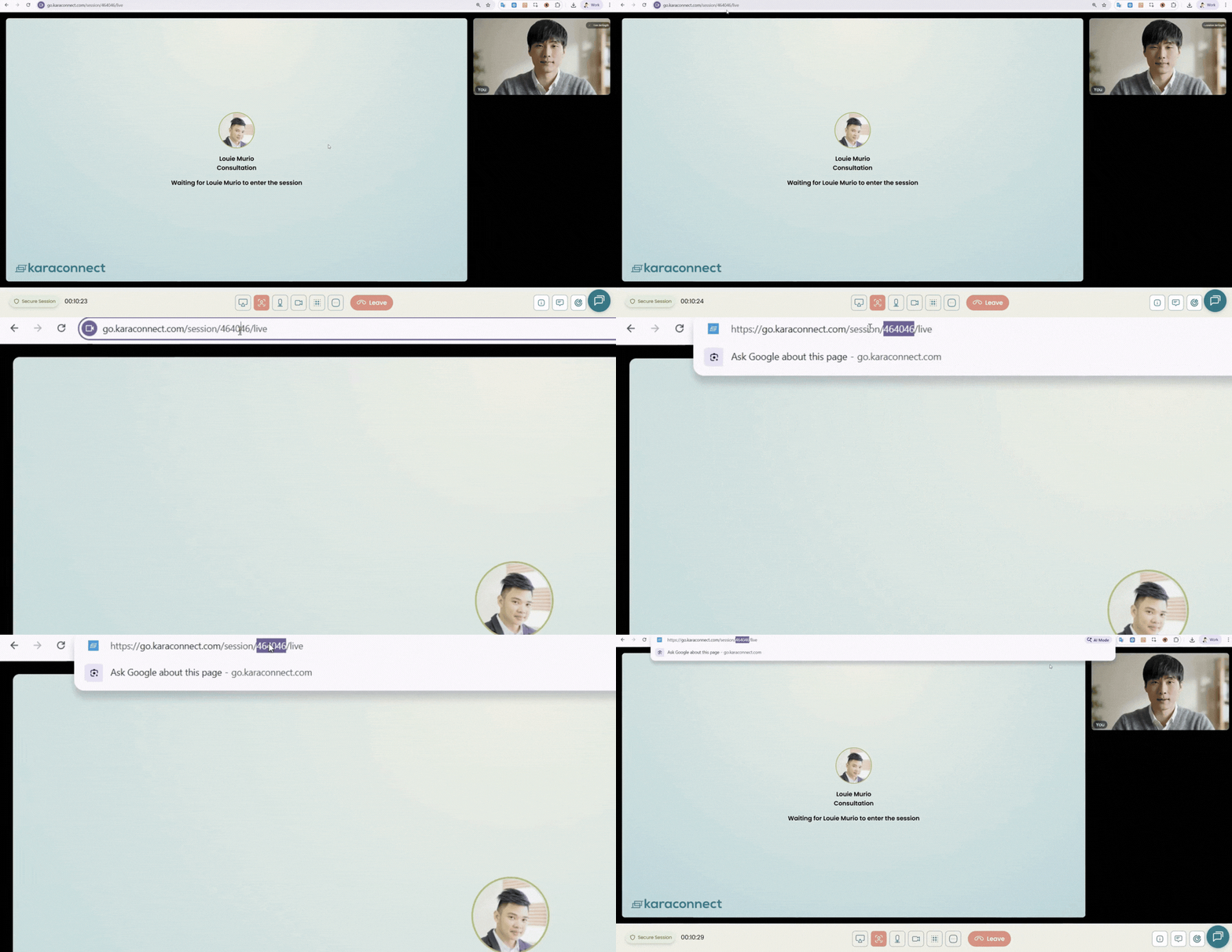
1. Check your Session ID Look at the web address (URL) in your browser. The numbers at the end of the link are your Session ID.
Example: In
https://go.karaconnect.com/session/464046, the ID is 464046.
2. Compare with your Professional
-
Ask your professional to confirm their Session ID.
-
If the numbers match: The connection is correct. Please check your [Camera & Microphone settings].
-
If the numbers are different: You are in separate rooms.
3. How to fix it If your IDs don't match, please refresh your dashboard and click the "Join Session" button again to ensure you are entering the correct, scheduled room.
Visual Guide
Click the image below to find more Troubleshooting articles: